Getting started
MConfirm tells you when the people you email open your message or click a link — one by one, even in group emails.
1. Sign in with Google
Go to app.mconfirm.com/login and choose Sign in with Google. Google asks you to allow MConfirm to send email as you and to manage the copies it sends. Both are needed — see Account & Gmail connection for exactly what MConfirm does with that access.
2. Install the Chrome extension
Download the extension, load it in Chrome and click Connect in its popup. Reload Gmail. You're done — every email you send is now tracked by default.
3. Send an email
Write in Gmail as you always do. In the compose window you'll see the MConfirm switch next to Send. Leave it on to track, switch it off to send an ordinary, untracked email.
4. Watch the ticks
- ✓ one grey tick — sent and tracked, not opened yet.
- ✓✓ two green ticks — opened. Hover to see who opened it, when and how often.
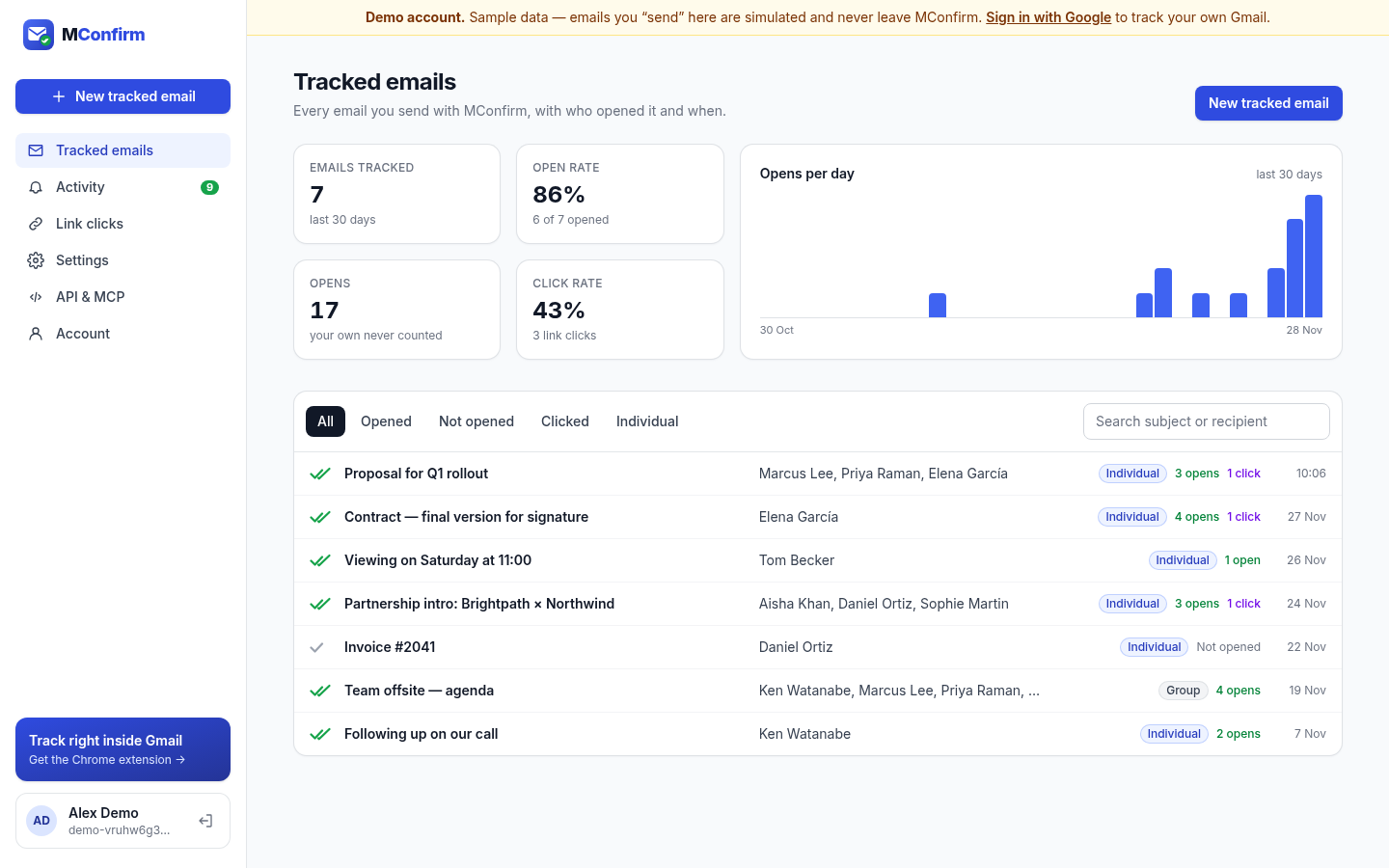
Try it without signing up
The live demo opens a sample account full of realistic activity. Nothing is sent from the demo.