Settings
Every setting, what it does and its default. Changes apply to emails you send from then on.
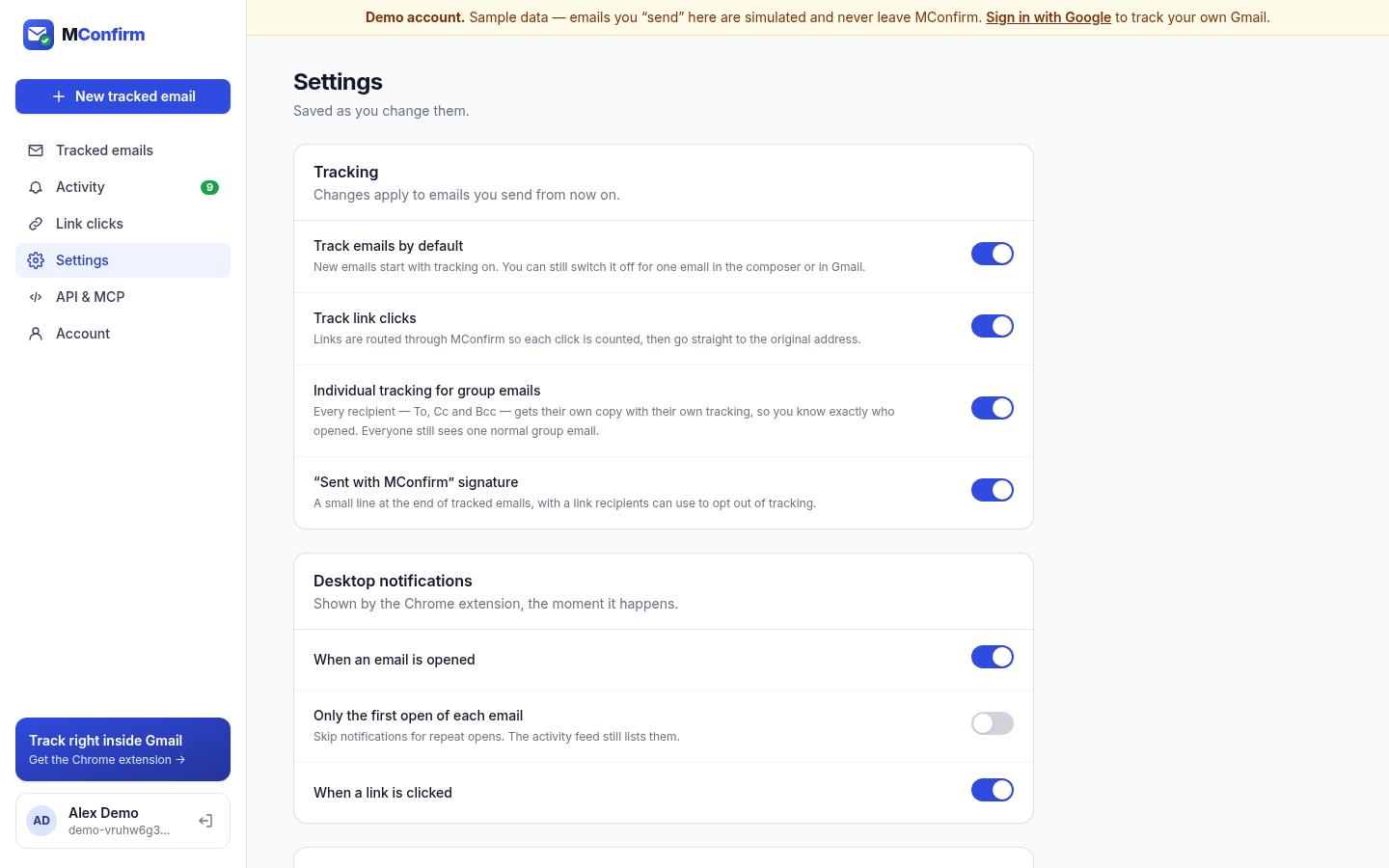
| Setting | Default | What it does |
|---|---|---|
| Track emails by default | On | New emails start with tracking on. You can still switch it off per email. |
| Track link clicks | On | Rewrite http/https links so clicks are recorded. |
| Individual tracking for group emails | On | One copy per recipient, so you see each person's opens and clicks. |
| Add MConfirm signature | On | A small “Sent with MConfirm” line with a “Don't track me” link for recipients. |
| Desktop notifications for opens | On | Show a desktop notification from the extension when an email is opened. |
| Desktop notifications for clicks | On | Show a desktop notification when a link is clicked. |
| Only the first open | Off | Notify on the first open of each email only, not every later open. |
| “Opened again” alerts | On | Alert when an email is opened again after a long silence. |
| …after how many days | 7 | The silence that counts as long: 1–365 days. |
| Not-opened reminder | Off | Default reminder if nobody opens an email within this many hours (e.g. 24, 48, 72). |
| Hot conversation alerts | On | Alert when an email reaches a number of opens. |
| …at how many opens | 3 | 2–50 opens. |
| Alerts in my Gmail threads | On | Place “opened again” and “not opened” notes in the email's own Gmail conversation. |
| Do-not-track list | Empty | Addresses (ann@acme.com) or domains (acme.com) that are never tracked — for example your own team. |
| Time zone | UTC | Used to show times in the dashboard. |
Changing settings from the extension
The extension popup has quick switches for tracking by default and desktop notifications. Everything else is under Settings in the dashboard.